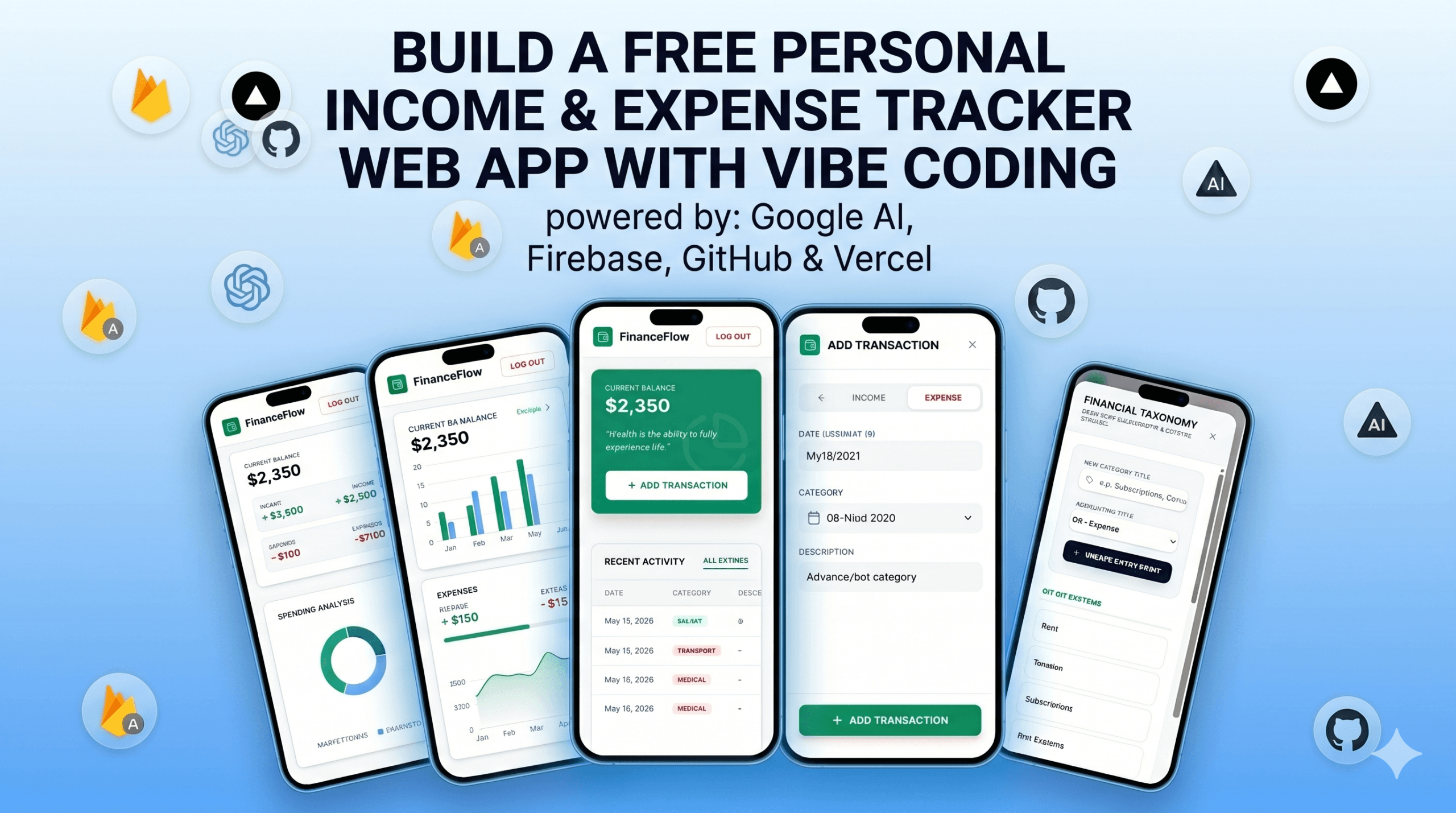
“Vibe code” a secure, responsive, and fully custom income and expense tracker app—no subscription fees, no coding experience required.
Have you ever wanted a personal finance tracker that works exactly how you want it—without paying monthly subscription fees or dealing with annoying ads?
Welcome to the era of vibe coding. Today, you don’t need to be a senior software engineer to ship a professional-grade web app. By acting as the director and letting AI write the code, you can build a secure, responsive, and completely free income and expense tracker in just a few minutes.
In this tutorial, you’ll use Google AI Studio to generate a React frontend and connect it to a free Firebase backend. The result is a real, full-stack app you can access from any device and save to your phone’s home screen like a native app.
Table of Contents
Choosing the right Backend and Frontend
If you’ve followed this blog before, you know I love building with Google Workspace tools. But as your needs grow, it makes sense to look at the full range of options. Here’s an honest comparison of three approaches to building a personal finance tracker:
| Approach | Interface | Hosting | Key consideration |
|---|---|---|---|
| Sheets + Apps Script (Sidebar & Web App) | Sidebar form inside Google Sheets (desktop only) + standalone web app for any browser | Google Cloud Run (requires a Cloud project with a billing account linked) | If you’re signed into multiple Google accounts in the same browser, the web app can redirect to the wrong account |
| Sheets + Apps Script + AI Studio / Cloud Run | AI-generated frontend (HTML/Tailwind), built in Google AI Studio Build Mode | Google Cloud Run (requires a Cloud project with billing account linked) | Apps Script must be deployed with ‘Anyone’ access to allow the frontend to call it; Cloud Run setup adds a few extra steps |
| React + Firebase + Vercel ★ This tutorial | AI-generated React app (built via AI Studio), full CRUD dashboard with charts and custom categories | Vercel via GitHub Sync (100% free, 3-click deployment, no terminal required) | Requires a one-time manual Firebase setup for security rules and database indexes (~5–10 minutes) |
Post 1 — Sheets + Apps Script (Sidebar & Web App)
The first post in this series built a tracker entirely within Google’s ecosystem. The Google Sheet acts as the database, and a bound Apps Script provides two ways to enter data: a sidebar form that opens inside Google Sheets on the desktop, and a standalone web app URL that works in any browser — including on mobile.
This is still a great starting point if you’re comfortable with Google Sheets and want something you can set up in minutes. The main thing to be aware of is a browser session quirk. Because the web app runs authenticated as the script owner, users who have multiple Google accounts signed in to the same browser at the same time can occasionally encounter an error.
Read the full post: Personal Finance Tracker App with Google Sheets
Post 2 — Sheets + Apps Script + AI Studio / Cloud Run
The second post levelled up the frontend significantly. Instead of a form built into the spreadsheet, the interface is a fully custom HTML/Tailwind web app generated by Google AI Studio’s Build Mode — a proper, mobile-friendly dashboard with charts and a clean layout.
Google Sheets still stores all the data, but this time the Apps Script is deployed as a web API — a middleware layer that the frontend calls to read categories, fetch historical data, and save new transactions. The finished app is hosted on Google Cloud Run, which gives it a permanent public URL and scales automatically.
A couple of practical points worth knowing: the Apps Script endpoint needs to be deployed with ‘Anyone’ access so the frontend can reach it, and publishing to Cloud Run requires linking a Google Cloud project with a billing account. The free tier is generous enough that a personal app will cost nothing, but the setup does add a few extra steps compared to Post 1.
Read the full post: Build a Personal Income and Expense Tracker with Google Sheets
Post 3 — React + Firebase + Vercel (this tutorial)
This post takes a different path entirely: instead of Google Sheets as the database, we use Firebase — Google’s dedicated app backend platform. Authentication is handled natively by Firebase Auth (no multi-account session complications), and data is stored securely in Firestore, a real-time document database that is fast and scales without any configuration.
The frontend is a React app — the same kind of stack professional developers use, but we let an AI builder write the entire codebase for us. To put the app on the internet, we sync our code to GitHub and use Vercel for a completely seamless, three-click deployment. The trade-off for this professional-grade app is a slightly longer one-time setup: creating a secure Firebase project and wiring up the config takes about five minutes. After that, the experience is significantly smoother, highly secure, and 100% free.
Let’s Build Your App
To make this completely free and secure, we are going to connect three powerful platforms: Firebase, AI Studio, and Vercel. While using professional developer tools might sound intimidating, we are going to bypass all the complicated setups and use browser-based shortcuts instead. Grab a cup of coffee, take a deep breath, and let’s set up your Personal Income and Expense Tracker.
Phase 1: Set Up Your Secure Login & Database (Firebase)
Firebase is a free tool from Google that will handle the secure login system and store all your app’s data.
1. Create the Project
- Go to Firebase Console and sign in with your Google account.
- Click Add Project, name it “My Finance Tracker”, and click Continue.
- Click + Add App in your new project dashboard, click the Web icon (it looks like
</>) to register your app.
- Give it a nickname and click Register App. (Do not check “Also set up Firebase Hosting for this app”)
- You will see a screen with a block of code. Leave it on the default “Use npm” option. Copy the middle block of code that starts with
const firebaseConfig = {and save it in a notepad—you will need it in Phase 2! Click Next through the rest of the steps until you are back at the dashboard.
2. Set Up the Login System (Authentication)
We only want you to access this app. We don’t want strangers signing up.
- On the left menu, click Security, then Authentication. Click Get Started.
- Under “Sign-in method”, click Email/Password. Turn the first switch to Enable, but leave “Email link” disabled. Click Save.
- Now, click the Users tab at the top.
- Click Add User. Enter your email and a strong password. This is how you manually create your account. Because we are not building a “sign up” page, only people you add here can ever log in.
3. Set Up Data Storage (Firestore Database)
- On the left menu, click Database & Storage, then Firestore. Click Create Database.
- Keep the default selected edition and click Next.
- Choose a location close to you and click Next.
- Choose Start in test mode for now (this allows the app to connect easily while we build it) and click Create. (Note: Test mode expires in 30 days. We’ll lock this down securely at the end of this tutorial!)
Phase 2: Generating the App (Google AI Builder)
Now for the magic. We are going to ask the AI to write the entire app for us, complete with charts and custom categories. We are going to give it your secret Firebase keys right in the prompt so it connects automatically!
- Go to Google AI Studio and sign in. Create a new prompt in the builder workspace.
- Copy and paste the exact prompt below, making sure to replace the bracketed text with the code you saved in your notepad:
“I need to build a responsive personal income and expenditure tracker web app. Please generate the complete project.
Requirements:
- Firebase Setup: Create a dedicated file for the Firebase connection. Use the following Firebase configuration to connect the app automatically:
[PASTE YOUR FIREBASE CONFIG CODE BLOCK HERE] - Authentication: The app must start with a login screen asking for Email and Password. DO NOT include a sign-up link or sign-up form anywhere. Accounts will be created server-side only. Show a “Log Out” button once logged in.
- Database (Firestore) & Custom Categories:
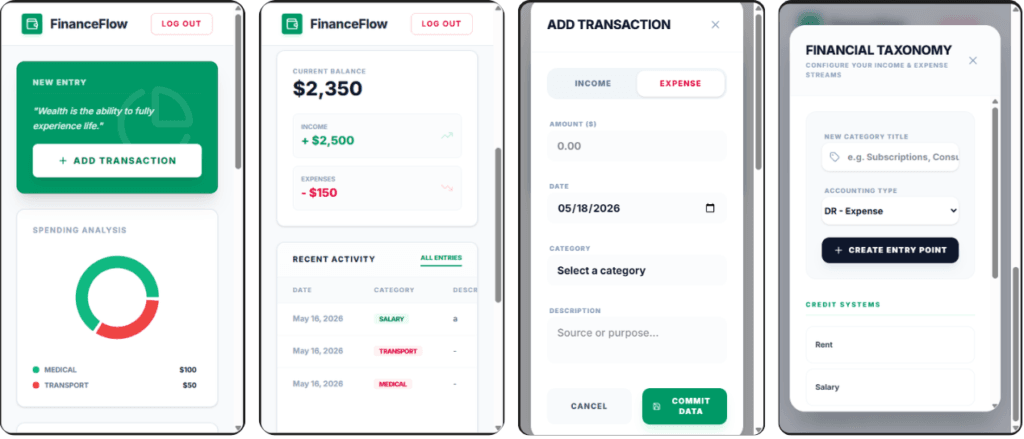
- Users can add a transaction (Type: Income/Expense, Amount, Category, Description, and Date). Save this to a ‘transactions’ collection, attaching the user’s UID.
- Crucial: Do not hardcode the categories. Create a feature/settings area where users can create, view, and delete their own custom categories for both Income and Expenses. Save these to a ‘categories’ collection in Firestore, attached to the user’s UID.
- Dashboard & Charts: Show the Total Balance, Total Income, and Total Expenses at the top. Place a highly visible, easy-to-access “Add Transaction” button directly on this main dashboard so users don’t have to hunt for it. Include a visual UI chart (like a Pie chart or Bar chart) that breaks down spending by category. Below the charts, show a list of the user’s transactions, fetching only documents where the UID matches the logged-in user. Order them by date.
- UI/UX: Make it responsive for mobile phones, clean, and modern. Use a green/red color scheme for income/expenses.
- Documentation: Please output a brief message summarizing the exact “Composite Indexes” I need to manually create in Firebase so this app runs perfectly on the first try (include the Collection ID, the Fields, and the Sort Order).”
Hit enter, and watch the AI build your app! Make a note of the indexes the AI tells you to build at the end of its response.
Crucial Step: Building the Database Sorting Rules
You probably want to test your new app in the AI Studio preview window right now! But if you try to add a transaction, you might get a blank screen. This is because Firebase needs a custom sorting rule (called an Index) to organize your data. Let’s fix that so you can test it:
- Look at the final text response the AI just generated. It will tell you the exact Collection ID and Fields you need for your Index.
- Go back to your Firebase Console -> Firestore Database and click the Indexes tab at the top.
- Click Create Index.
- Enter the Collection ID the AI gave you (likely
transactions). - Add the Fields exactly as the AI instructed. For example:
- Field 1:
uid(Set to Ascending) - Field 2:
date(Set to Descending)
- Field 1:
- Set the Query scopes to Collection and click Create.
Note: It takes about 3 to 5 minutes for Firebase to build the index. Grab some water, and once it is done, your AI Studio preview will work flawlessly!
Phase 3: Saving Your App’s Code (GitHub)
Instead of copying and pasting code manually, the AI builder has a magic button to save your entire project to GitHub (a safe storage website for code).
⚠️ CRITICAL WARNING: Do not create a repository on GitHub.com first! Let the AI do it for you here, otherwise it will give you an error saying the repository already exists.
- Create an Account: If you don’t already have one, quickly go to GitHub.com and create a free account. Leave that tab open and go back to your AI builder.
- In the top right corner of the AI builder, click Publish (or look for a GitHub tab in the side menu).
- Connect Your Account: Click the “Sign in to GitHub to continue” button. A new window will pop up – click the “Install & Authorize” button to allow the AI to safely send your code to your account.
- Under “Sync to GitHub”, type a brand new name into the “New repository name” box (e.g.,
my-finance-tracker-app). - Set the visibility to Private (so only you can see the code).
- Click the Create GitHub repository button.
- Final Confirmation: A new screen will appear showing a list of all your app’s files. Click the Stage and commit all changes button at the bottom. This officially saves the code into your new GitHub account!
Phase 4: Putting it on the Internet (The 3-Click Way)
To put your website on the internet, we are going to use a completely free, beginner-friendly platform called Vercel. It requires zero coding and zero developer tools!
Step 1: Sign Up with GitHub
- Go to Vercel.com and click Sign Up.
- Choose Continue with GitHub. This securely links Vercel to the code you just saved in Phase 3. Follow the quick prompts to create your free account.
Step 2: Deploy Your App
- Once you are in the Vercel dashboard, click the black Add New button and select Project.
- In the “Import Git Repository” section, click the dropdown and select Add GitHub Account.
- A new window will pop up. If you prefer to keep your accounts private and not link everything, choose the Only select repositories option. Look for the repository you created in AI Studio (e.g.,
my-finance-tracker-app), select it, and click Install. - You may be asked to quickly authenticate (confirm your password) with GitHub. Use whatever login option is available to you.
- Once connected, your repository will appear on the Vercel screen. Click the Import button next to it.
- Vercel is incredibly smart. It will automatically detect how your app was built. You don’t need to change a single setting! Just scroll down and click the big Deploy button.
Step 3: Watch the Magic
Vercel will now take your code and turn it into a live website. This usually takes less than a minute!
- Once it finishes, you will see a big “Congratulations!” screen.
- Click the Continue to Dashboard button.
- Look for the Domains section. Vercel will give you a free, secure website link (it will look something like
my-finance-tracker.vercel.app).
Phase 5: The Final Lockdown (Securing Your Data)
Your app is live! But before you start typing in your real financial data, we need to do one final security check to lock the doors of your database.
- Go to Firebase Console -> Databases & Storage -> Firestore.
- Click the Rules tab at the top.
- Replace all the code there with the following text:
- Click Publish. Your data is now completely private!
rules_version = '2';
service cloud.firestore {
  match /databases/{database}/documents {
    // Protect the transactions
    match /transactions/{document} {
      allow read, write: if request.auth != null && request.auth.uid == resource.data.uid;
      allow create: if request.auth != null;
    }
    // Protect the custom categories
    match /categories/{document} {
      allow read, write: if request.auth != null && request.auth.uid == resource.data.uid;
      allow create: if request.auth != null;
    }
  }
}
You now have a fully functioning, mobile-responsive, highly secure finance tracker with beautiful charts. Go to your custom .vercel.app link on your phone, log in with the email you created in Phase 1, set up your custom categories, and start tracking your money!
Wrapping Up
Take a step back and look at what you just accomplished. Without writing a single line of code, you built a professional-grade React application, connected it to a secure enterprise-level database, and deployed it live to the internet. You didn’t just find a free alternative to subscription-based finance trackers—you built one tailored exactly to your needs.
Because you own the database and the code, your financial data belongs entirely to you. There are no ads, no monthly fees, and no companies tracking your spending habits.
To make it feel like a real native app, open your new .vercel.app link on your phone’s browser, tap the share button, and select “Add to Home Screen.” You now have a private, fully functional finance app sitting right next to your other apps.
The best part? This exact method isn’t limited to finance trackers. You can use this powerful blueprint—Firebase for the database, AI Studio for the code, and Vercel for the hosting—to build almost any web app you need for your day-to-day life or small business. Whether you want a custom inventory manager, a personal habit tracker, or a client booking system, you now have the skills to bring those ideas to life completely from scratch, without writing a single line of code.
As you get more comfortable, remember that you have the source code! You can always go back to AI Studio in the future to ask it to add new features, like a dark mode, a budget limit, or a button to export your data to Excel. The possibilities are endless. Happy building, and happy tracking!