When you hear “Google Sheets Dashboard,” you probably picture a spreadsheet filled with sparklines, pie charts floating over cells, and perhaps a slicer or two. While functional, these standard dashboards have limits: they look terrible on mobile, they require you to share the actual spreadsheet file (risking your raw data), and they lack that professional “software” feel.
But what if you could take that same data and visualize it as a standalone, professional HTML Web App—without paying for tools like Power BI or Tableau?
In this guide, I will show you how to use AI to build a custom, interactive Web App Dashboard directly from your Google Sheet data. By simply copying a prompt into ChatGPT or Gemini, you can generate the code for a dashboard that runs entirely for free, looks like premium software, and serves as a perfect lightweight alternative to Looker Studio.
Table of Contents
Video Tutorial
If you’d prefer written instructions with additional tips, just keep reading.
Why build a Google Sheets Dashboard Web App this way?
Before we dive into the “How,” let’s look at the “Why.” Why not just use Looker Studio or standard Sheet charts?
- 100% Free & Native: It runs entirely on Google’s servers. No external subscriptions.
- Interactive Web App: This isn’t just a picture of a chart. It’s a deployed website URL that you can share with your team.
- Total Customization: Since we are generating the code, you can tweak colors, layouts, and logic to fit your exact needs.
- Data Security: Your data stays within your Google account.
| Feature | Standard Sheet Dashboard | Looker / Power BI | AI-Built Web App (This Method) |
| Cost | Free | $$$ (for advanced features) | Free |
| Effort | Low (Manual Setup) | High (Steep Learning Curve) | Low (AI Writes the Code) |
| Mobile Friendly | Poor | Good (often requires app) | Excellent (Responsive HTML) |
| Data Privacy | Must share file | Secure | Secure (User never sees raw data) |
Prerequisites: What You Need Before Starting
You don’t need to be a coder, but you do need your data ready.
- A Google Sheet with Data: Ensure your data is in a clean format.
- Row 1: Headers (e.g., “Date”, “Sales”, “Region”).
- Rows 2+: Your actual data.
- No Merged Cells: Ensure the data looks like a standard table.
- An AI Chatbot: Gemini, ChatGPT, or Claude.
The AI Prompt & How to Use It
The secret to success isn’t just asking AI to “make a dashboard.” It is about providing technical constraints so the AI writes clean, error-free code.
I have refined a prompt that forces the AI to use best practices (like server-side normalization and separate HTML files).
Step 01: How to Feed Your Data to the AI
To get working code, the AI needs to know your column structure (e.g., “Column A is Dates, Column B is Sales”). You have three ways to do this:
Option A: Use the “Add Files” option of your chatbot, and chose the Google Drive option, and select the Google Sheets Workbook (Make sure your data is in the first tab of the Google Sheets Workbook)
Option B: Download your sheet as a CSV file (File > Download > Comma Separated Values) and upload it directly to the chat window.
Option C: Highlight your headers and the first ~10 rows of data. Copy them and paste them directly into the prompt below.
Step 02: The AI Prompt
I have designed a specific prompt that forces the AI to use best practices—like separating HTML from logic and normalizing data so your charts don’t break.
In this prompt, I am asking the AI to decide the type of charts to be included in the dashboard. You can modify the code and request the type of charts you need.
Copy and paste this prompt into ChatGPT, Claude, or Gemini:
Act as a Google Apps Script dashboard expert.
Your tasks:
- Analyze the dataset and recommend suitable charts.
- Build a fully working interactive dashboard as a Google Apps Script Web App using Google Charts and Bootstrap.
Requirements:
- Use the bound script method
- Separate files:
Code.gs,Index.html,JavaScript.html,css.html
- Use a server-side
include()function - Normalize all data on the server side (dates, numbers, booleans)
- Ensure charts load correctly without silent errors
Output:
- Brief chart explanation
- Complete working code
- Simple deployment steps for a non-technical user
The Generated Code (Reference)
The AI will generate custom code tailored to your data. However, the structure will be similar to the example below. If you want to test this right away, you can use the generic template provided. You can copy the Google Sheet containing the data from the link below to your Drive.

I used the Canvas tool of the Gemini 3 free version to generate the following code. You can achieve better results by using the paid versions of your chatbots.
The generated codes comprise the following four files (as requested in the prompt).
- The Server Logic (
Code.gs): This script fetches data from your sheet and serves the webpage. - The Layout (
Index.html): This is the skeleton of your dashboard, using Bootstrap for a responsive, mobile-friendly grid. - The Logic (
JavaScript.html): This handles drawing the charts. - The Styling (
css.html).
How to Implement the Code
Now that the AI has generated the necessary components, we can proceed with building the dashboard.
Where to place the code
If you haven’t used Google Apps Script before, you might be wondering where to paste the code above.
Google Sheets contains a powerful tool called Google Apps Script (similar to VBA in Excel). You can access the editor directly from your spreadsheet menu.
- Open your Google Sheet.
- Navigate to Extensions > Apps Script.
Create your files
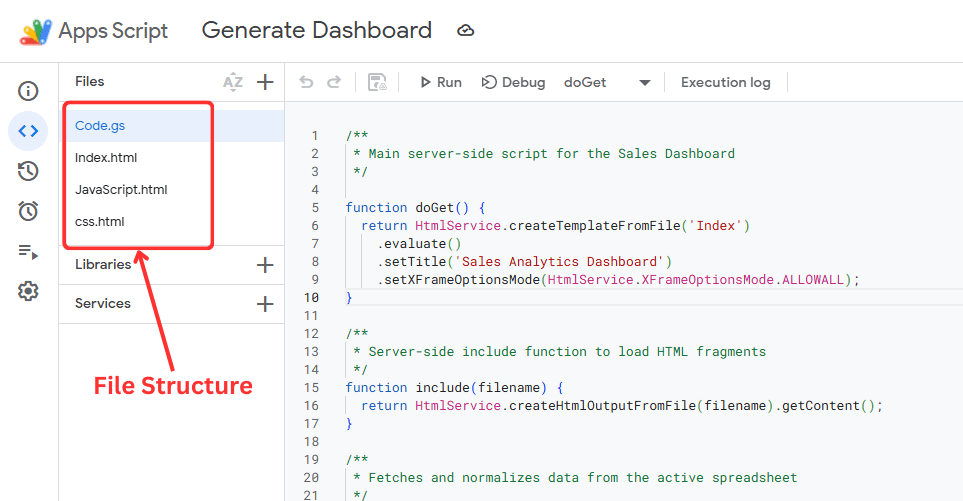
Once the Apps Script editor opens, you will see a default file named Code.gs. However, our AI prompt requested a structure with four separate files to keep things organized.
We need to manually create the HTML files in the editor:
- Clean
Code.gs: Delete the default code inside the existingCode.gsfile and paste the server-side code provided by the AI. - Create HTML Files:
- On the left sidebar, click the + (Plus) icon next to “Files”.
- Select HTML from the dropdown.
- Name the file
Index(Apps Script automatically adds.html, so just type “Index”). - Repeat this process to create two more HTML files named
JavaScriptandcss.
- Paste the Code: Open each file you just created and paste the corresponding code generated by the AI.
- Save: Click the Disk icon in the toolbar (or press
Ctrl + S/Cmd + S) to save your project.
After creating all 4 files, your file structure should look like the one below.
Deploy the Web App
This is the step where your script transforms into a live dashboard URL.
- Click the blue Deploy button in the top-right corner.
- Select New deployment.
- Click the Gear icon next to “Select type” and choose Web app.
- Fill in the configuration settings:
- Description: Enter a name (e.g., “Sales Dashboard v1”).
- Execute as: Select Me (your email address).
- Who has access: Select Anyone with Google Account (if you want to share it internally) or Anyone (if you want it fully public).
- Click Deploy.
Since this is the first time running the script, Google will ask for permission to read your spreadsheet data.
- Click Authorize access.
- Select your Google account.
- Important: You may see a screen saying “Google hasn’t verified this app.” This is normal because you are the developer.
- Click Advanced.
- Click Go to (Untitled Project) (unsafe) at the bottom.
- Click Allow.
View Your Dashboard
Once authorized, Google will provide you with a Web App URL.
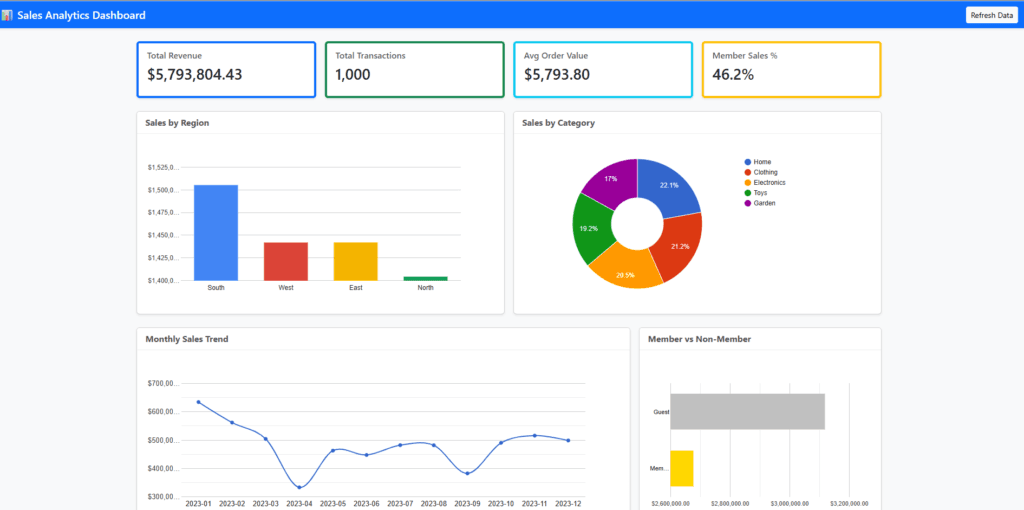
Click that link to open your new dashboard in a full browser tab. You can bookmark this link and share it with anyone. Whenever you update the data in your original Google Sheet, simply refresh this webpage to see the charts update instantly.
You can view the live dashboard from this link.
Pro Tip: Build Gradually, Don’t Overload
You might be tempted to ask for a complex dashboard with filters, date pickers, and specific colors all in the first prompt. Don’t.
Large language models (AI) work best when you treat them like a junior developer: give them one clear task at a time. If you ask for everything at once, the code often breaks or becomes too complex to debug. Get the basic version running first, then add features one by one.
Next Steps: Customizing Your Dashboard (No Code Needed)
Once your base dashboard is live, you can simply ask the AI to upgrade it. Keep the chat open and try these iterations:
- Add Interactivity (Dropdowns): The real power of a web app is interactivity. Ask the AI to make the charts dynamic.
Prompt: “Update the code to add a dropdown menu at the top. When I select a specific ‘Region’, update all charts to show data only for that region.” - Visual Polish: Once the logic works, fix the look.
Prompt: “Update the CSS to use a ‘Dark Mode’ theme and change the charts to my brand colors: Navy Blue and Gold.”
By layering these features step-by-step, you ensure your dashboard remains stable and error-free while becoming increasingly powerful.
Wrapping Up
Building a custom dashboard used to require a budget for developers or a subscription to expensive BI tools. Today, all it took was your data, a smart prompt, and a few minutes of copy-pasting.
You now possess a powerful new skill: the ability to turn raw numbers into a shareable, interactive experience. Whether you use this for client reporting, internal team tracking, or just to organize your personal finances, the flexibility is unmatched because you own the code.
Don’t stop here. The web app you just deployed is a living foundation. As your data grows and your needs change, simply return to your AI assistant to add new filters, tweak the design, or expand the logic. The technical barrier is gone—now it’s time to create.
Great post , thank you for sharing.
I appreciate the information you shared.