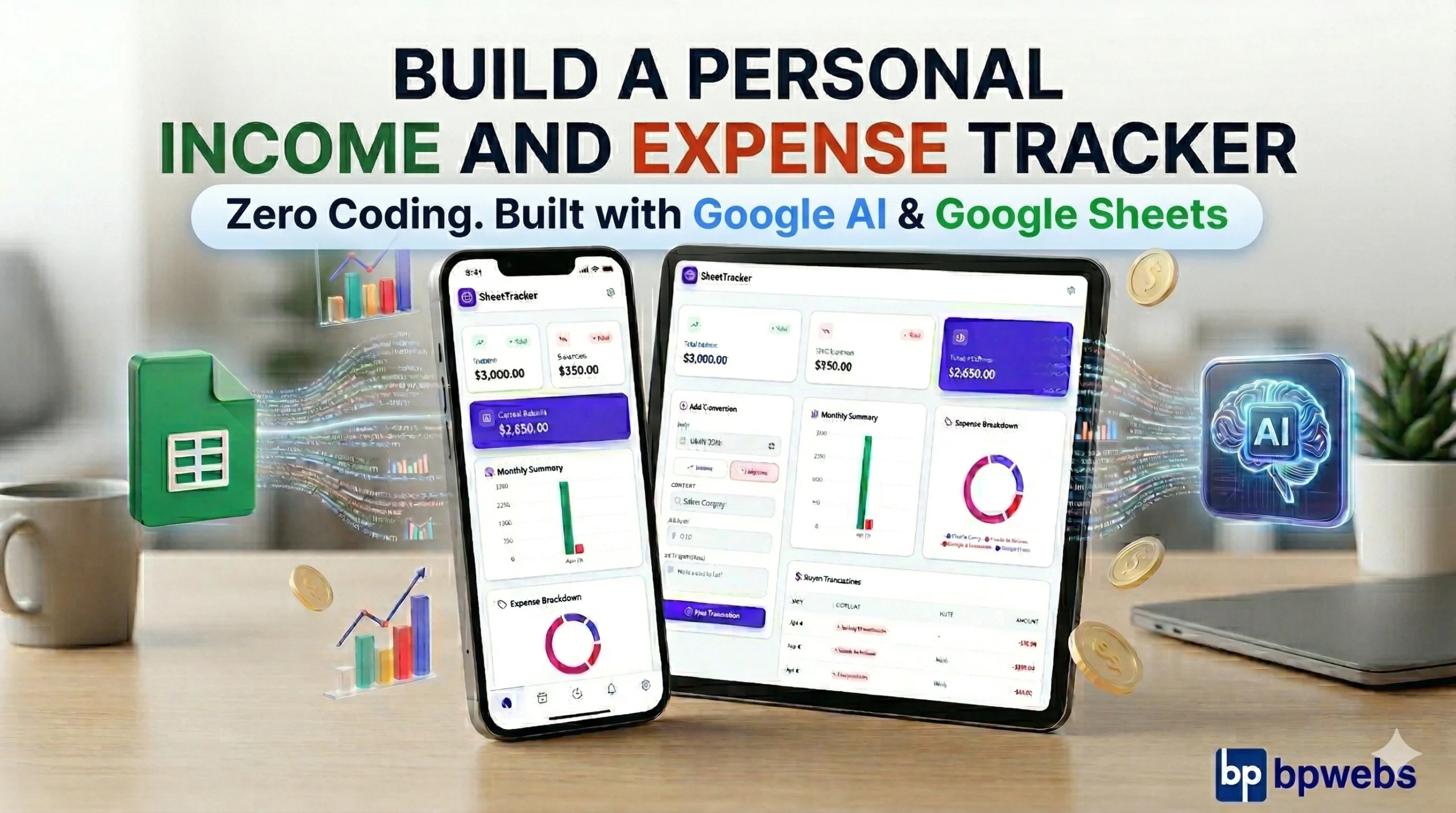
Be honest — how many times have you told yourself “I really should keep track of my spending” and then never actually done it? The apps on your phone are either too simple or weirdly complicated. Spreadsheets feel like homework. And hiring someone to build you a custom app? Way too expensive.
Here’s the good news: you don’t need any of that. In this tutorial, you are going to build your very own income and expense tracker from scratch — using AI to do the hard work for you. You just describe what you want in plain English, and the AI writes the whole thing. Your records get saved to a Google Sheets that only you can see.
No coding. No monthly subscription. No, handing your financial data to some app you found in an app store.
Yes, really. Google AI Studio has a feature called Build mode where you type what you want (in normal, everyday English) and Google’s Gemini AI writes all the technical stuff for you. Think of it like telling a really smart assistant exactly what you need — you describe it, they build it.
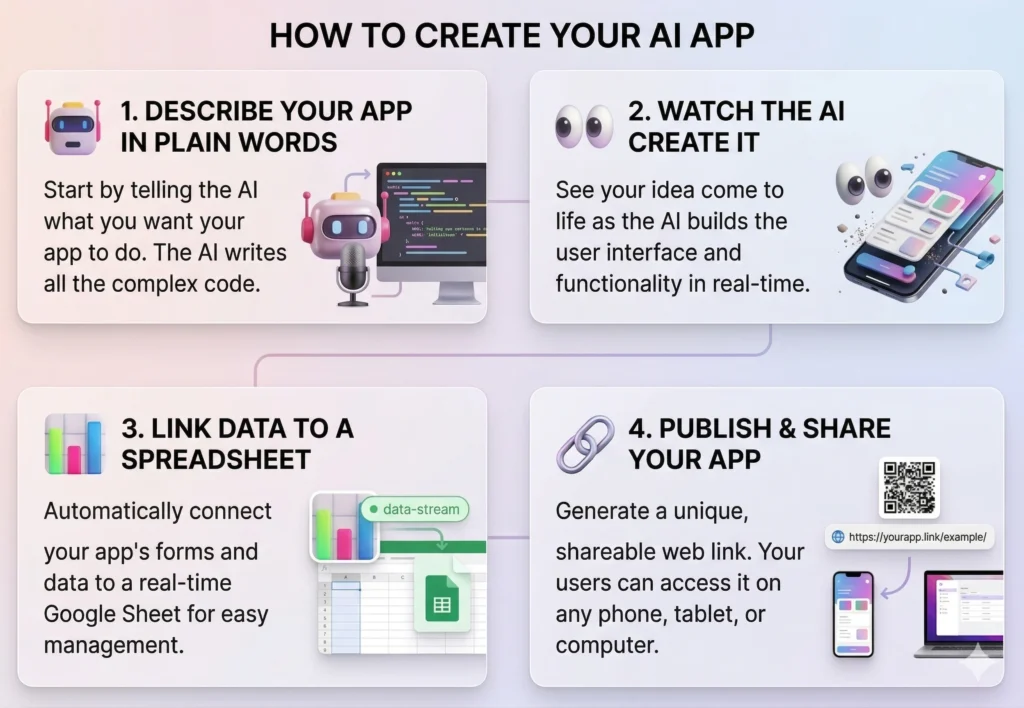
Table of Contents
What you will need before starting
- A Google account (the free kind — the one you use for Gmail or Google Drive is perfect)
- A web browser like Chrome, Firefox, or Safari
- About 60 minutes and a cup of tea ☕
That’s genuinely it. No downloads, no installation, no programming experience required.
How This All Fits Together (The Simple Version)
Before we dive in, let me give you a quick picture of what we’re building and how the pieces connect. Don’t worry — it’s simpler than it sounds.
Think of it like a chain with three links:

Before clicking anything,
- Google AI Studio builds you a real web app
You type what you want in plain English. The AI writes a complete app with a form, running totals, and a transaction history — and you can see it working on screen while it’s being built. - A small piece of code acts as the go-between
We’ll use something called Google Apps Script — think of it as a tiny helper program that lives inside Google. When you save a transaction in your app, this helper receives the information and passes it to your spreadsheet. You don’t write this code — the AI writes it for you. - Google Sheets keeps all your records safe
Every transaction you enter lands as a new row in your own Google spreadsheet — the same kind you’d use for a budget or shopping list. It stays in your Google Drive, and only you can see it. - Your finished app gets a real web address
Once you’re happy with it, you can publish your app to get a proper link — like a website. You can open it on your phone, share it with family, or just bookmark it for yourself.
Throughout this tutorial, whenever I use a technical-sounding term, I’ll explain what it actually means in plain language. You don’t need to memorise any of it — just follow the steps.
Step 01: Create Your Google Spreadsheet
First things first — we need somewhere to store your data. We’re going to use Google Sheets, which is Google’s free version of Excel. Even if you’ve never used it before, don’t worry. This part takes about five minutes.
- Log in to your Google Account. Go to Google Drive and create a new Google Sheets workbook, or just click here to open a new Google Sheets Workbook. At the top of the screen, click where it says “Untitled spreadsheet” and rename it to something like My Finance Tracker. Then press Enter.
- Add your column headings. Create the table to insert our app data by adding columns, Timestamp, Date, Type, Category, Amount, Currency, and Note. As shown below.
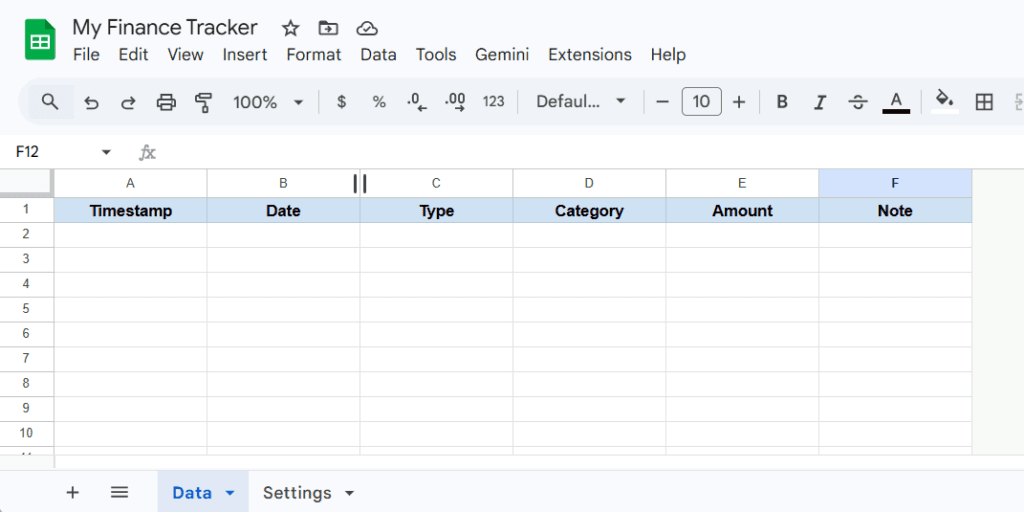
- Grab your Spreadsheet ID: Every Google Sheet has a unique ID — a long string of letters and numbers that identifies it. You’ll need this in the next step. Look at the address bar in your browser right now. The web address will look something like this:
The bit highlighted in red — that long string betweenhttps://docs.google.com/spreadsheets/d/1-cMY1294jZaGmBrgMt1twkpXekThw7LO7o89eSuanW4/edit?gid=0#gid=0/d/and/edit— is your spreadsheet’s ID. Select it, copy it, and paste it somewhere handy (like a sticky note or a new browser tab). You’ll need it in just a moment.
Step 02: Ask the AI to Write the Code
Here’s where it gets fun. We need a small program that receives your transaction details from the app and drops them into your spreadsheet. Writing something like that from scratch would normally take a developer hours. We’re going to ask the AI to do it in about 30 seconds.
- Open Google AI Studio > Build: Open a new tab and go to aistudio.google.com. Sign in with your Google account. Then go to the Build section.
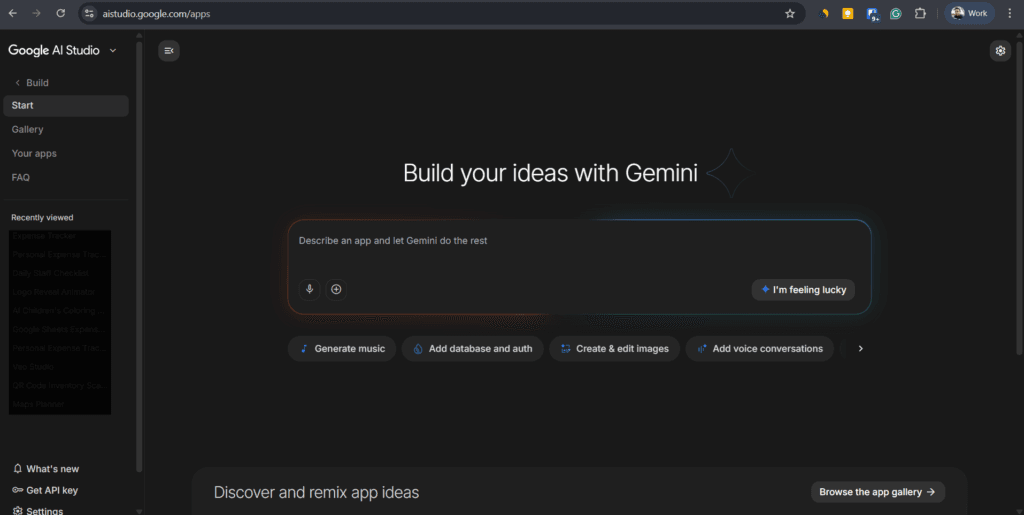
- Use this ready-made message — just copy and paste: Copy the text below and paste it into the AI Studio chat box. Before you click Run, replace the words
PASTE YOUR SHEET ID HEREwith the actual ID you copied from your spreadsheet in Step 1.
I want to build a personal Income and Expense Tracker web application that saves data directly to my Google Sheet. Please write all the code I need in two parts:
Part 1: Google Apps Script Write the backend script to connect my Google Sheet to the web. My sheet has two tabs and the Google Sheet ID is
[PASTE YOUR SHEET ID HERE]:
- “Data” tab (Columns: Timestamp, Date, Type, Category, Amount, Note)
- “Settings” tab (Column A: Income Categories, Column B: Expences Categories)
The script needs to do two things:
- Read the categories from the “Settings” tab and all the historical records from the “Data” tab so it can send them to the web app.
- Receive new form submissions from the web app and add them as new rows to the “Data” tab (including a timestamp). Make sure the script is set up so a web page can talk to it without cross-origin security errors.
Part 2: Frontend Web App (One single HTML file) Create a beautiful, modern, and mobile-friendly web app using Tailwind CSS.
- The Interface: It should have a clean card layout with a form to enter new transactions (Date, Type, Category, Amount, Note). The “Category” dropdown must automatically change its options based on whether the user selects ‘Income’ or ‘Expense’.
- The Dashboard: Include a visual chart summarizing my past data (like total income vs expenses).
- The Connection: When the app first opens, it should show a pop-up asking the user to enter their “Google Apps Script Web App URL”. Save this URL so it doesn’t ask every time. Use this URL to pull in the dropdown categories and chart data, and to save new entries when the form is submitted.
Output the Apps Script code first, briefly explain how to deploy it, and then output the complete HTML file.
Hit enter and let the AI do its magic! It will generate a custom script for your Google Sheet and a sleek HTML interface complete with interactive charts.
Step 03: Deploy Your Apps Script Backend
Once you run the prompt, your AI Studio page will appear as shown below. The right sidebar contains the Apps Script code required for your project. The section below explains how to implement it.
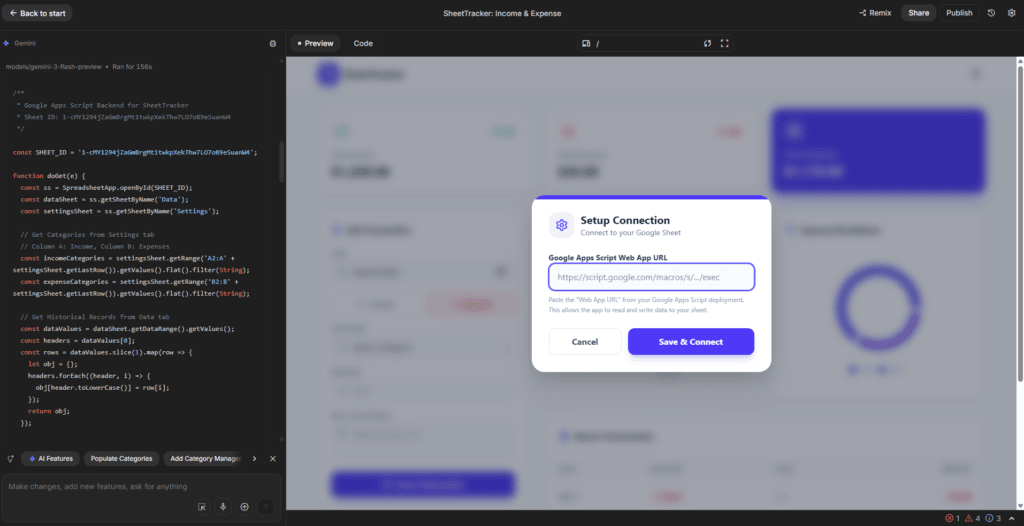
- Go back to your “My Finance Tracker” Google Sheet.
- In the top menu, click Extensions > Apps Script.
- Delete any code in the editor and paste the Apps Script code the AI generated for you.
- Rename the project and click the Save icon (the floppy disk).
- Now, click the blue Deploy button at the top right and select New deployment.
- Click the gear icon next to “Select type” and choose Web app.
- Give it a description (e.g., “Finance Tracker V1”).
- Under Execute as, select Me.
- Under Who has access, select Anyone (this is crucial so your front-end app can talk to it).
- Click Deploy.
- Google will ask you to authorize access. Click “Review permissions”, select your account, click “Advanced” at the bottom, and click “Go to Untitled project (unsafe)”. Allow the permissions.
- Once deployed, you will get a Web app URL. Copy this URL to your clipboard!
Step 04: Connect & Publish Your App with AI Studio
Now, we will bring your app to life and put it on the web using AI Studio.
- Because of our “Magic Prompt”, the app is smart enough to handle the connection for you! You can test the app directly inside AI Studio’s preview window, located on the right side of the screen.
- When the app loads in the preview, it will immediately display a pop-up asking for your Web App URL. Paste the URL you just copied from Google Apps Script.
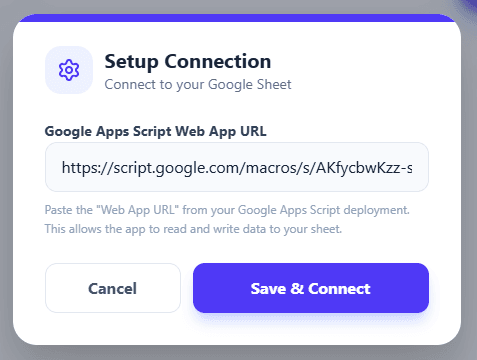
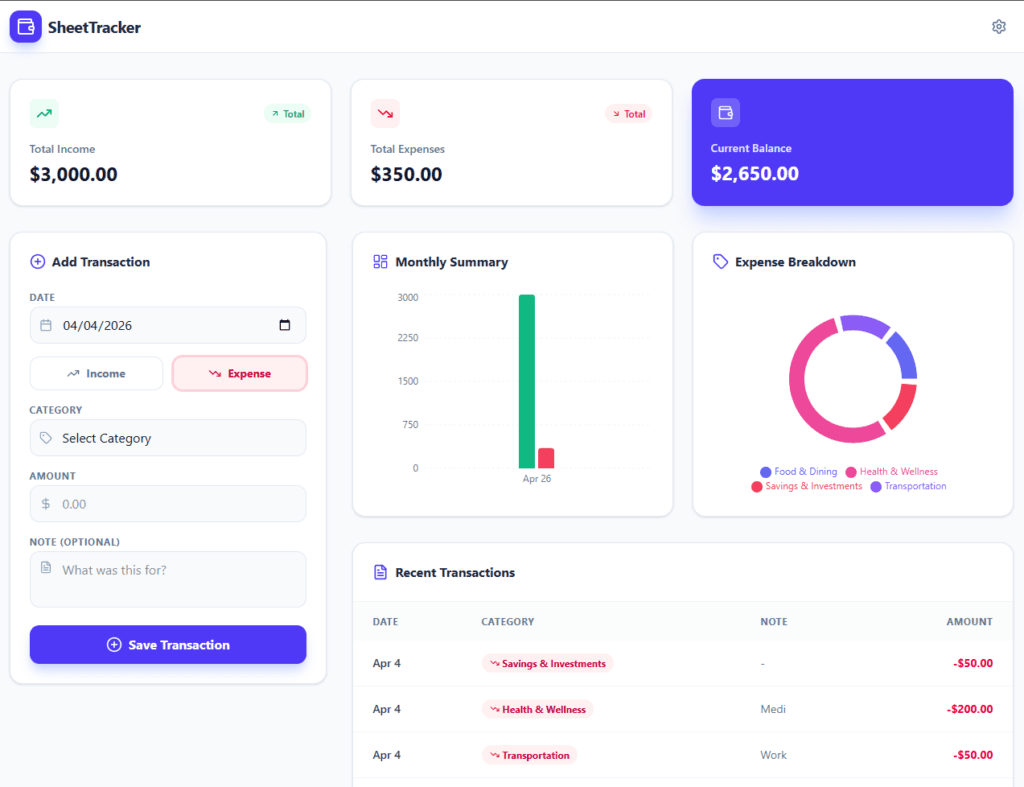
- You should see the categories load directly from your Google Sheet, your chart will render your data summaries, and if you submit a new transaction, it will instantly appear in your “Data” tab!
- The Final Step (Publishing): To use this app on your phone or share it with others, look to the top right corner of the AI Studio interface and click the Publish (or Deploy) button.
- The Google Cloud Project: Under the hood, AI Studio deploys your app using Google Cloud Run. A pop-up will ask you to select a Google Cloud Project. If you don’t have one, simply follow the prompts to create it.
- Note: You will need a billing account linked to the project. Don’t worry—Cloud Run has a massive free tier (2 million requests per month), so personal apps like this will effectively cost you $0.
- Once you click deploy, it generates a permanent, highly scalable public link!
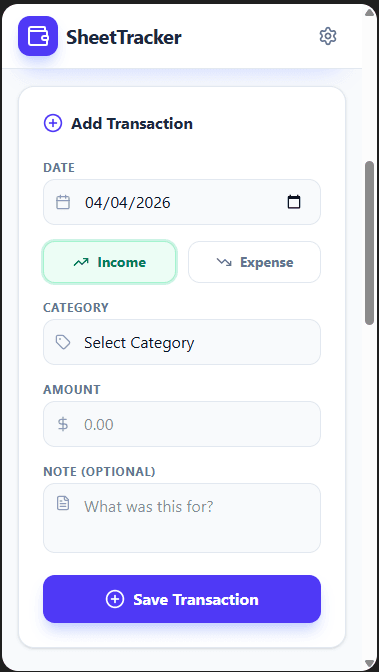
- Make it a Mobile App: Email or message the published link to your phone. Open the link in Safari or Chrome, tap the Share icon, and select “Add to Home Screen”. Now you have a native-feeling mobile app icon to track your finances on the go!
Desktop View
Mobile View
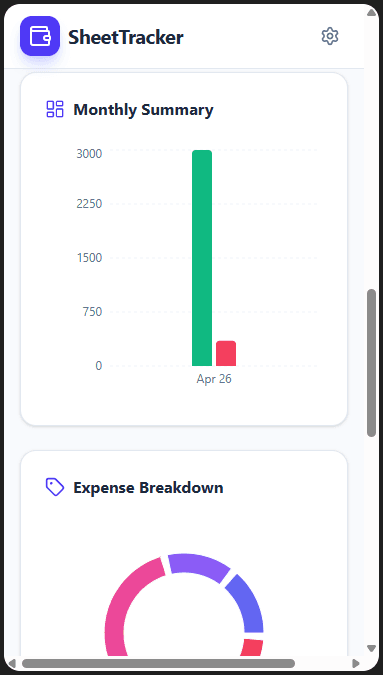
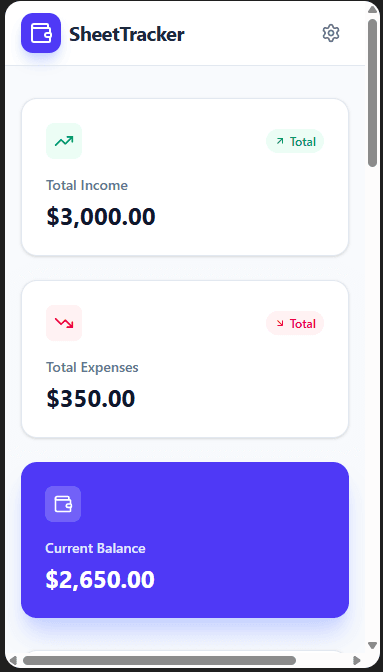
When Things Don’t Go to Plan
Sometimes things don’t work on the first try — and that’s completely okay. Here are the most common hiccups and how to sort them out.
- Success message shows but nothing in the sheet — Check the tab name at the bottom of your Google Sheet. It must match exactly what’s in your script (usually
Sheet1). Even a capital letter difference will cause this. - Getting an error every time I save — Either your Spreadsheet ID is wrong (double-check it against the URL in your browser) or you forgot to create a new deployment after editing the script. Saving the code alone isn’t enough — you have to redeploy it.
- Google showed a scary warning during setup — This is normal. Click Advanced, then “Go to FinanceTrackerAPI (unsafe)”. It’s safe — Google just shows this for any script you write yourself.
- The app preview is blank or broken — Type in the AI Studio chat: “The preview isn’t showing correctly — can you find and fix the problem?” The AI will sort it out.
- Cloud Run deployment failed — You need a Google Cloud project first. Go to console.cloud.google.com, create a free project, search for Cloud Run API, and enable it. Then try again from AI Studio.
Whatever error you see on screen, copy it and paste it into the Build mode chat: “I got this error: [paste the error here]. What does it mean and how do I fix it?” The AI wrote the code, so it’s usually very good at explaining what went wrong and how to sort it out.
Wrapping Up
Congratulations! You just built a custom, serverless, mobile-responsive personal finance tracker with visual charts, all without writing a single line of code.
By leveraging the generative power of Google AI Studio and the reliable database capabilities of Google Sheets, you have created a system perfectly tailored to your spending habits. Save the published link to your phone’s home screen, and start tracking your finances the smart way!
Have you tried building other tools with AI Studio? Let us know in the comments below!