In the fast-paced world of content creation, efficiency is paramount. As bloggers and content creators, you’re constantly juggling various tasks from keyword research to the actual writing process. What if you could significantly streamline the creation of AI prompts, generating powerful and consistent instructions directly from a tool you already use daily?
Enter Google Sheets. This versatile tool isn’t just for number crunching; by combining its organizational power with simple formulas, you can build a robust AI prompt generator in Google Sheets. This system can save you hours of repetitive work and ensure that every piece of content you generate is perfectly aligned with your SEO strategy and brand voice.
Table of Contents
Video Tutorial

If you’d prefer written instructions with additional tips, just keep reading.
Why Use Google Sheets for AI Prompt Generation?
Leveraging Google Sheets for this purpose offers numerous benefits, transforming your content workflow:
- Repeatability and Consistency: You can create AI prompts for blog writing in a structured way, ensuring every prompt follows the same high standards and consistent structure. This helps maintain your brand voice across all content.
- Customization: Quickly tweak variables like tone, word count, target audience, or even content format for different blog requirements.
- Efficiency and Automation: Formulas allow you to instantly generate AI-ready prompts, saving time from rewriting prompts from scratch.
- Free & Flexible: No extra tools, add-ons, or subscriptions are needed; it’s just a smart use of existing Google Sheets functions.
- Collaboration: Easily share templates with team members, ensuring everyone maintains brand voice consistency and can refine prompts together.
- Version Control: You can track and iterate on prompt performance over time, using Google Sheets’ version history to see which prompt variations perform best.
The Anatomy of a Perfect Prompt for an AI Prompt Generator
Before diving into the “how-to,” it’s crucial to understand the “why”. A generic prompt will likely yield generic results. To get a well-structured, SEO-optimized, and engaging blog post from an AI, you must provide detailed and specific instructions. A powerful prompt acts as a comprehensive creative brief for your AI assistant.
Essential variables your prompt should include are:
- Act as (Persona): Instruct the AI to adopt the persona of an expert in your field to set the tone and depth.
- Blog Post Title: The headline of your article.
- Target Audience: Who are you writing for?.
- Primary Keyword: The main keyword for SEO.
- Secondary Keywords: Related keywords to enrich content and improve semantic SEO.
- Tone of Voice: How the article should sound (e.g., “Professional and informative,” “Casual and witty,” “Authoritative and academic”).
- Word Count: A target length for the blog post.
- Blog Post Outline: A high-level structure with H2 and H3 headings for flow control.
- Call to Action (CTA): What do you want the reader to do after reading the post?.
- Negative Constraints: Specify what the AI should avoid (e.g., “Do not use overly technical jargon,” “Avoid mentioning competitor X”).
By defining these elements upfront, you guide the AI to produce content that is not only well-written but also strategically sound.
Building Your AI Prompt Generator in Google Sheets: A Step-by-Step Guide
Here’s how to create your simple yet powerful template to generate AI prompts:
Step 1: Set Up Your Template Layout
Open a new Google Sheet and create an input table.
- In Column A, list the prompt variables as questions or labels (e.g., “Act as (Persona):”, “Blog Post Title:”).
- In Column B, leave the cells empty. This is where you or your team will input the specifics for each blog post.
- Optionally, add a Column C for “Instructions” to guide the user on what to input.
Your setup might look like this:
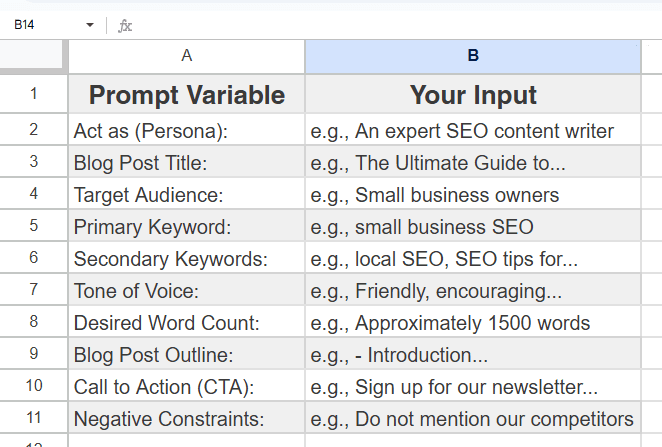
Step 2: The Magic Formula – Combining Inputs
This is where the automation happens. You’ll use a formula to combine all your inputs from Column B into a single, ready-to-use prompt. The & operator is used for concatenation, and CHAR(10) adds line breaks for readability in the final prompt. You can also use CONCATENATE or TEXTJOIN functions.
If you have setup the prompt variable as shown in the above Image 1, you can directly use the following formula anywhere in the same sheet to generate the prompt.
="Write a comprehensive blog post with the following specifications:" & CHAR(10) & CHAR(10) &
"**Act as**: " & B2 & CHAR(10) & CHAR(10) &
"**TITLE**: " & B3 & CHAR(10) & CHAR(10) &
"**CONTENT REQUIREMENTS**:" & CHAR(10) &
"- Word Count: " & B8 & " words" & CHAR(10) &
"- Tone: " & B7 & CHAR(10) &
"- Target Audience: " & B4 & CHAR(10) & CHAR(10) &
"**SEO OPTIMIZATION**:" & CHAR(10) &
"- Primary Keyword: " & B5 & CHAR(10) &
"- Secondary Keywords: " & B6 & CHAR(10) &
"- Ensure natural keyword integration throughout the content." & CHAR(10) & CHAR(10) &
"**STRUCTURE REQUIREMENTS**:" & CHAR(10) &
"- Outline to follow: " & B9 & CHAR(10) &
"- Include an engaging introduction that hooks the reader." & CHAR(10) &
"- Use clear headings and subheadings (H2, H3)." & CHAR(10) &
"- Use bullet points or numbered lists where appropriate." & CHAR(10) &
"- End with a strong conclusion and call-to-action: " & B10 & CHAR(10) & CHAR(10) &
"**NEGATIVE CONSTRAINTS**:" & CHAR(10) &
"- " & B11 & CHAR(10) & CHAR(10) &
"Please create content that is original, engaging, and provides genuine value to the " & B4 & " audience."
AI Prompt Generator – Google Sheets Template
Step 3: Example: Generate Your First Prompt & Copy
Now, fill in the fields in Column B with the details for your next blog post. As you type, the cell with the formula will automatically populate with a complete, well-structured AI prompt.
Example Filled Template and Generated Prompt:
| Prompt Variable | Your Input |
|---|---|
| Act as (Persona): | An expert financial advisor specializing in retirement planning for millennials. |
| Blog Post Title: | 5 Common Retirement Planning Mistakes Millennials Make (and How to Avoid Them) |
| Target Audience: | Millennials aged 25-40 who are starting to think about their long-term financial future. |
| Primary Keyword: | retirement planning mistakes |
| Secondary Keywords: | millennial retirement, saving for retirement, common financial mistakes |
| Tone of Voice: | Relatable, straightforward, and empowering. Avoid condescending language. |
| Desired Word Count: | Around 1200 words |
| Blog Post Outline: | – Introduction… – Mistake 1… – Conclusion… |
| Call to Action (CTA): | Encourage readers to download our free retirement planning checklist. |
| Negative Constraints: | Do not promote specific financial products or get-rich-quick schemes. |
The Generated Prompt will appear similar to this:
Write a comprehensive blog post with the following specifications:
**Act as**: An expert financial advisor specializing in retirement planning for millennials.
**TITLE**: 5 Common Retirement Planning Mistakes Millennials Make (and How to Avoid Them)
**CONTENT REQUIREMENTS**:
– Word Count: Around 1200 words words
– Tone: Relatable, straightforward, and empowering. Avoid condescending language.
– Target Audience: Millennials aged 25-40 who are starting to think about their long-term financial future.**SEO OPTIMIZATION**:
– Primary Keyword: retirement planning mistakes
– Secondary Keywords: millennial retirement, saving for retirement, common financial mistakes
– Ensure natural keyword integration throughout the content.**STRUCTURE REQUIREMENTS**:
– Outline to follow: – Introduction… – Mistake 1… – Conclusion…
– Include an engaging introduction that hooks the reader.
– Use clear headings and subheadings (H2, H3).
– Use bullet points or numbered lists where appropriate.
– End with a strong conclusion and call-to-action: Encourage readers to download our free retirement planning checklist.**NEGATIVE CONSTRAINTS**:
– Do not promote specific financial products or get-rich-quick schemes.Please create content that is original, engaging, and provides genuine value to the Millennials aged 25-40 who are starting to think about their long-term financial future. audience.
All you have to do is copy the content of this cell and paste it into your preferred AI writing tool like ChatGPT, Gemini, Claude, or Jasper. Then, you can review and refine the AI output as needed.
Advanced Tips for Dynamic Prompt Generation
To make your prompt generator more sophisticated and streamline your workflow, you can incorporate dynamic features for consistency and variation.
- Add dropdowns: To increase efficiency, you can convert some fields into dropdowns. This ensures you do not miss important fields and can quickly complete the form. For the “Tone” field, for example, you can predefine options such as “Professional,” “Friendly,” and “Conversational.”
- Check for Completeness: To ensure that you have filled all the required fields, you can add a helper column with green and red symbols to visually indicate whether the setup is complete. For example, in Google Sheets, you can include a helper column with the following functions:
- To check if a field is empty:
=IF(ISBLANK(B2),"🔴","🟢") - To check if the word count is empty or less than 600 words:
=IF(AND(ISNUMBER(B8),B8>600),"🟢","🔴")
- To check if a field is empty:
Pro Tips for Better Results and Scaling Your System
- Be Specific with Inputs: The more detailed your inputs, the better your AI-generated content will be. Instead of “marketing,” specify “email marketing for e-commerce businesses”.
- Experiment with Tone Combinations: Try combinations like “professional yet approachable” or “authoritative but conversational”.
- Use Conditional Formatting: Highlight empty required fields in red to easily spot missed inputs.
- Create Multiple Templates: Save different versions for different content types (e.g., technical articles, social media posts, email newsletters).
- Team Collaboration Features: Share your Google Sheet with team members and use comments to collaborate on prompt improvements. Leverage Google Sheets’ version history to track which prompt variations perform best.
- Advanced Automation (for power users): Consider using Google Apps Script to automatically populate certain fields based on content calendars or keyword research, or connect your sheet to SEO tools via APIs.
Wrapping Up: Systemize Your Success
By investing a small amount of time to set up this AI prompt generator in Google Sheets, you are creating a scalable system for your content creation efforts. This approach not only dramatically speeds up your workflow but also enforces a high standard of quality and consistency across all your blog posts.
This template is more than just a prompt generator; it’s a content strategy tool that helps you maintain consistency, optimize for SEO, and scale your content production. It eliminates the guesswork from prompt crafting, ensuring every piece of content meets your standards and serves your audience effectively.
Start implementing this system today. Create your template, start generating prompts, and watch your content production soar to new heights. You’ll never have to rewrite an AI prompt from scratch again. Happy blogging!
One thing I noticed about the Prompt Generator on Undetectable.ai is how it adapts well to different writing styles.
Whenever I get stuck while writing, the prompt generator gives me fresh, creative ideas instantly. It’s like having a brainstorming partner 24/7. Undetectable.ai is super helpful for breaking writer’s block
Great post , Thanks for sharing.