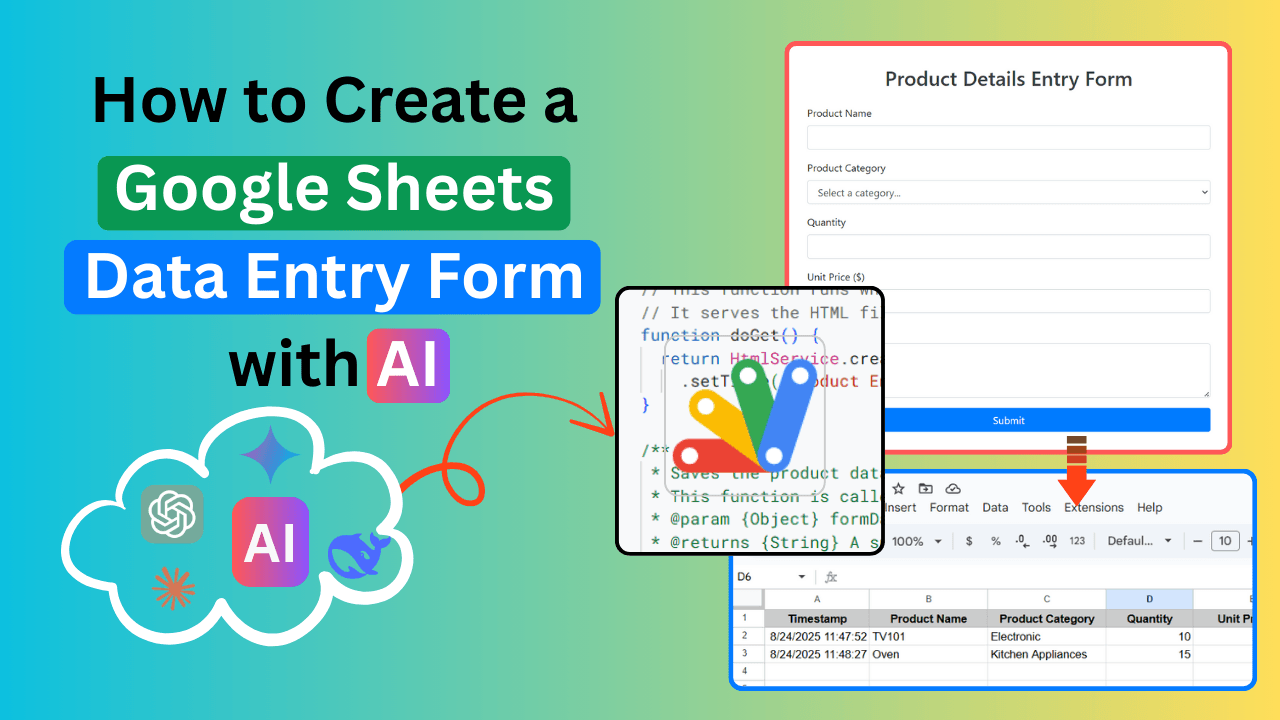
Our blog has several posts about building web apps with Google Apps Script and Google Sheets. Thanks to Generative AI, this process is now easier than ever. However, you still need a basic understanding of how to implement the generated code to launch your project.
In this blog post, I’ll walk you through using Generative AI to create a simple data entry web app for Google Sheets.
Table of Contents
Video Tutorial

If you’d prefer written instructions with additional tips, just keep reading.
Writing the prompt for creating a Google Sheets Data Entry Form with AI
First, you should be able to explain your requirement in simple English. For example, you would say;
I want to make a Google Apps Script web app that I can use to fill in product details and save them into my Google Sheet.
The form should have:
- A box to type the product name
- A drop-down list for product category with these options: Electronic, Kitchen Appliances, Bedroom Furniture, Living Room Furniture
- A box to enter the quantity (only numbers)
- A box to enter the unit price in dollars
- A box to type remarks
I also want the sheet to have a column for the date and time the entry was added (this should be added automatically when I submit the form).
Please make the form look nice using Bootstrap.
Give me all the code I need (HTML, Bootstrap, and Apps Script) and also clear steps for:
- Creating the Google Sheet
- Adding the code
- Publishing the web app so I can open it and fill out the form
- How to share it with the data entry staff
When I submit the form, it should save the data to the sheet, show me a message that it worked, and then clear the form so I can add the next one.”
Using AI to Write the Code
Once you have your prompt, you can use a Generative AI tool (like Gemini or ChatGPT) to write the code for you. Simply paste your prompt into the AI chat box to get the code and instructions.
You can obtain step-by-step instructions for developing the web app by using a similar prompt. If the provided instructions are unclear, follow the steps below to build your web app.
Creating the Google Sheet
Begin by creating a new Google Sheets workbook in your Google Drive, then manually add the desired column headings.
- Open Google Sheets: Go to sheets.google.com and create a new blank spreadsheet.
- Name your Sheet: Rename the sheet (e.g., “Product Data Entry”).
- Set up Headers: In the first row, add the column headers in this exact order of the code (e.g., Date & Time, Product Name, Product Category, Quantity, Unit Price, Remarks according to the code below).
Adding the Code
By providing the above code to the Gemini, I got the following code snippets for our project.
The above code consists of two files: Code.gs and Index.html. Code.gs holds server-side functions that run on Google’s servers, while Index.html contains the HTML, CSS, and JavaScript code executed in users’ browsers.
Now, follow the steps below to insert this code into the Google Sheets workbook.
- Open Apps Script: From your Google Sheet, go to Extensions > Apps Script. This will open a new tab with the Google Apps Script editor.
- Paste the Apps Script code: Copy the code in the Code.gs file and replace the default code in the Code.gs file with it.
- Create an HTML file: In the Apps Script editor, click the plus icon in the File tab. Then, from the dropdown, select HTML. This will insert a new file and name it “Index”.
- Paste HTML code: Now, copy the code for the Index.html file and replace any existing code in the Index.html file you created earlier.
Save your project: Click the save icon (floppy disk) for both Code.gs and Index.html.
Publishing the Web App
- Deploy the web app: In the Apps Script editor, click on Deploy > New deployment.
- Select deployment type: Click on Select type and choose Web app.
- Configure deployment:
- Description: Give your deployment a descriptive name (e.g., “Product Data Entry Form”).
- Execute as: Select Me (your email address).
- Who has access: Choose Anyone. This allows anyone with the link to access the form. If you want to restrict access to only users within your Google Workspace domain, select Anyone with Google account and configure accordingly.
- Deploy: Click the Deploy button.
- Authorize access: The first time you deploy, you will be prompted to authorize the script. Click Authorize access, select your Google account, and grant the necessary permissions.
Copy Web App URL: After successful deployment, you will see a “Web app URL.” Copy this URL. This is the link to your data entry form.
Testing the Form
Open the Web app URL in your browser. Fill in some test data and submit the form. Verify that the data appears correctly in your Google Sheet, along with the automatically added date and time, and that the form clears after submission and displays a success message.
Congratulations! You’ve successfully created a Google Sheets data entry form using Generative AI. This method significantly streamlines the development process, allowing you to focus on the application’s functionality rather than intricate coding details.
How to Share it with Data Entry Staff
- Distribute the URL: Share the copied Web app URL with your data entry staff. They can access the form by opening this URL in any web browser.
- Provide instructions: Briefly explain how to use the form (e.g., “Fill in the fields and click ‘Submit’ to save data to the spreadsheet”).
Working Example
You can find a working example of the web app discussed above to help you understand its functionality and implementation. The Google Sheets workbook and the web app itself are linked below for your reference.


Wrapping Up
By leveraging Generative AI, you can significantly accelerate the creation of functional web applications connected to Google Sheets. This approach not only simplifies the development process but also empowers users with limited coding experience to build powerful tools for data management. Experiment with different prompts and functionalities to further customize your data entry forms and other sheet-based applications.